Custom Follow, Sub & Bit Alerts for OBS + Streamer.bot: Full Setup Guide
A free OBS browser source with custom alerts for follows, subs, bits, raids and more, all driven through Streamer.bot. Thirty visual styles, particle effects and built-in sounds, no code required. Here's the full setup.
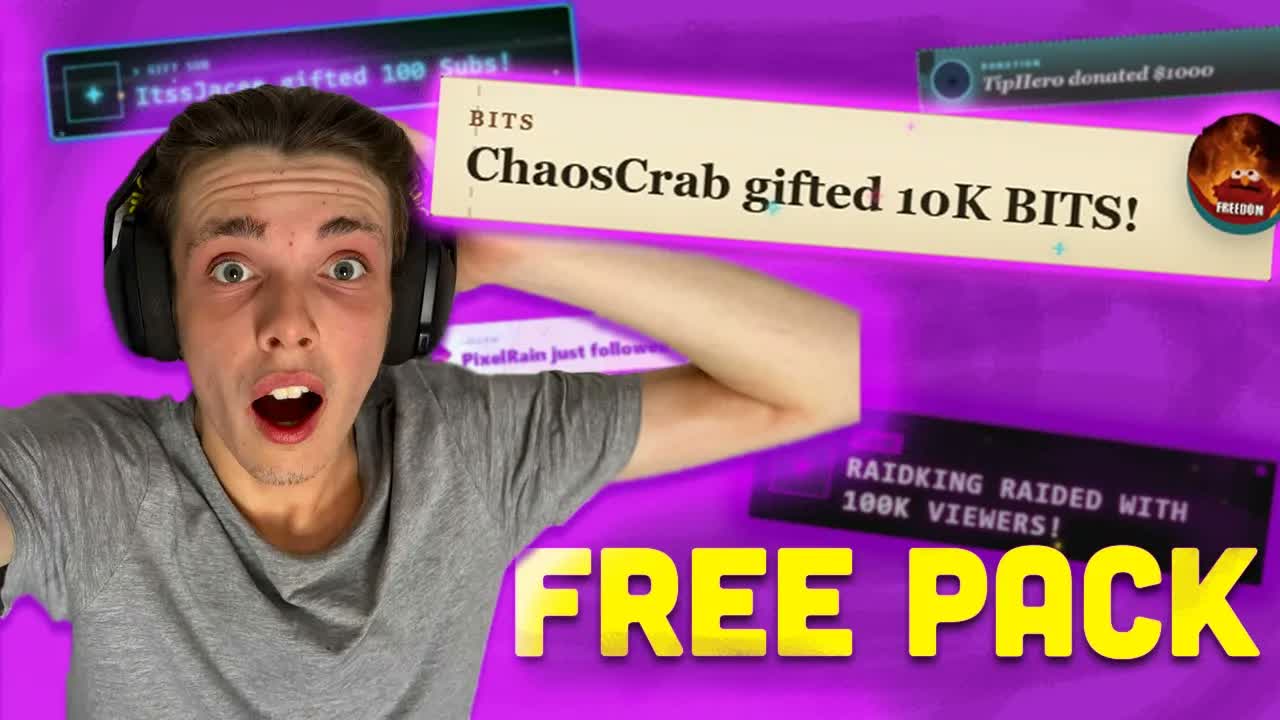
Twitch alerts are usually one of two things. A bland default that shipped with your overlay software, or something you paid for and can't easily change. This pack is neither. It's a free download that plugs into OBS through Streamer.bot, and every part of it, colour, motion, sound, icon, is yours to tweak from a settings page with no code.
It covers follows, subs, resubs, gift subs, bits, raids and donations, plus a custom trigger you can wire up to fire from anything. Setup takes a few minutes. Here's the whole thing written out, so you don't have to keep scrubbing back through the video.
What you need first
- OBS Studio 28.0 or newer
- Streamer.bot 1.0.0 or newer, installed and running (download it here)
- The Custom Follow, Sub & Bit Alerts pack, free from Ko-fi
- A few minutes
Step 1: Grab the pack
- 1
Open the Ko-fi listing
Head to the Custom Follow, Sub & Bit Alerts pack on Ko-fi.
- 2
Set the price to zero
It's pay-what-you-want. Type
0in the amount box at checkout and it's free. - 3
Check out and download
Hit Get now, run through checkout, then open View content and download the zip. It lands in your Downloads folder.
- 4
Unzip it somewhere sensible
Pull the folder out of the zip and put it somewhere you won't move it later, like Documents. OBS needs to point at real files on disk.
Step 2: Import into Streamer.bot
- 1
Open Streamer.bot and hit Import
The Import button sits at the top of the window. It opens an empty text box.
- 2
Drag the import file in
Drag
streamerbot-import.txtinto that box. Streamer.bot reads it and lists everything it's about to add. - 3
Confirm the import
Click through the confirmation screens. Once it's done, open your Actions list and you'll see the full set of alert actions sitting there, one per event type.
Step 3: Add the overlay to OBS
In OBS, click the + under Sources, choose Browser, and create a new one. Name it something like Alerts.
- Local file, on. Browse to the folder you unzipped and select
overlay.html. This pack reads straight from the file on disk, so there's no URL to manage. - Width `1920`, Height `1080`. Match it to your stream's canvas.
- Control audio via OBS, on. So you can mix, mute, or keep the alert sounds out of your VOD.
- Shutdown source when not visible, on. Keeps it from running when the scene isn't on screen.
- Refresh browser when scene becomes active, on. Gives you a clean state each time the scene comes up.
Click OK. The overlay looks blank until you've styled something in settings, that's expected. Drop the source wherever you want it on the canvas for now.
Step 4: Restyle every alert in settings
Open the same folder and double-click settings.html. It opens in your browser and it's the control panel for every alert type: follows, subs, resubs, gift subs, bits, raids, donations, and the custom trigger.
Everything runs locally in the browser. Nothing gets uploaded anywhere, so it stays light and private.
- Pick the alert type you want to edit from the list, then flip it on or off.
- Style, entry animation and duration. Thirty visual styles and twenty-five entry animations to mix and match.
- Particle effects, sound and volume. Thirteen particle effects plus twenty-three built-in sounds, or upload your own.
- Icon. A static image or a GIF.
- Text and colour. Set what the alert says, with variables like the follower's username, plus full colour control.
Once an alert looks right, scroll to the bottom left and click Apply. That pushes your settings straight into the overlay you already added to OBS, no copying a URL or restarting anything.
Step 5: Test it live
With OBS and Streamer.bot both open, find one of the imported actions in Streamer.bot, for example Follow, and right-click it. Choose Test (or Simulate, depending on your version) and it fires once in OBS so you can see exactly what viewers will.
Do the same for subs, gift subs, bits and the rest until every alert type looks the way you want. Real follows, subs and bits trigger the same alerts automatically from here on.
If something isn't working
- Nothing fires on real events. The overlay talks to Streamer.bot over WebSocket. In Streamer.bot, go to Servers/Clients, then WebSocket Server, and make sure it's enabled and running on port
8080. - Settings changes don't show up in OBS. You edited
settings.htmlbut didn't click Apply in the bottom left. Nothing saves until you do. - The overlay is blank in OBS. Check that Local file is ticked in the browser source and that it's pointed at
overlay.htmlinside the unzipped folder, not the zip itself. - You can't hear the alert, or it's missing from your VOD. Control audio via OBS is off in the browser source properties.
- Streamer.bot shows the action but nothing happens. Having Streamer.bot open isn't the same as it being connected to your platform account. Check the connection status before you troubleshoot anything else.
The pack is free and includes the overlay, the settings page and the Streamer.bot import in one download.
Download the alert pack freeStuck somewhere in this? Drop it in the Discord and I'll help you sort it. Or check the full download page, or browse everything else free, including the weather overlay, the chat translator and the text-to-speech pack.
Frequently asked questions
- Is the custom alert pack free?
- Yes. It's pay-what-you-want on Ko-fi. Type 0 at checkout and you get the full pack: the overlay, the settings page and the Streamer.bot import file.
- Do I need Streamer.bot for these OBS alerts to work?
- Yes. The overlay listens for events over WebSocket from Streamer.bot. Import the included file, make sure the WebSocket server is enabled on port 8080, then add overlay.html as a Local file browser source in OBS.
- What alert types does the pack cover?
- Follows, subs, resubs, gift subs, bits, raids and donations, plus a custom trigger you can fire from any Streamer.bot action.
- How do I change the alert styles after setup?
- Open settings.html, change what you want (style, animation, colour, sound, icon), then click Apply in the bottom left. It updates the overlay in OBS immediately, no restart needed.
- What size should the OBS browser source be?
- 1920 by 1080, matched to your stream canvas. Tick Local file in the source properties and point it at overlay.html inside the unzipped folder.
- Can I test an alert without waiting for a real follow or sub?
- Yes. In Streamer.bot, right-click the action for that alert type and choose Test or Simulate. It fires once in OBS so you can check it before you go live.